
Impact: Reduced support time on this feature by 75%
Product: Mondoo Enterprise is an IT risk management platform for monitoring the security of cloud, SaaS, network, on-site, and other infrastructure.
Sample: This section from the Mondoo docs tells operations engineers how to set up continuous monitoring of their AWS environment.
Contribution: I wrote this topic and all of the in-product copy that you see in the Mondoo (dark background) screenshots.
Note: Many links in this sample are disabled.
Monitor AWS Security
Mondoo’s continuous AWS scanning lets you track the security posture of your AWS account. It helps you protect EC2 instances, EKS clusters, EBS volumes… every asset in your AWS environment. Once you set up the integration between Mondoo and AWS, Mondoo continuously scans your AWS infrastructure for vulnerabilities and misconfigurations that put your business at risk.
What does a Mondoo AWS scan find and report?
Mondoo scanning identifies and flags these types of potential security issues in your AWS environment:
- Misconfigurations—Your team makes thousands of choices when configuring your AWS accounts and services. Mondoo scans find any choices you’ve made that can expose your AWS environment to attack. For example, it flags resources exposed to public internet access and alerts you about overly permissive identity and access management policies. To learn more about AWS security misconfigurations, read AWS Security Policies.
- Vulnerabilities and advisories—Mondoo finds common vulnerabilities and exposures (CVEs) in your operating systems. For example, suppose some of your containers run older, unpatched versions of Amazon Linux. Mondoo tells you which containers are running older versions. It describes the specific CVEs on those versions and the risks they pose.
Mondoo also identifies advisories that Amazon issues to provide information and patching for known issues.
Choose how to scan
Choose between a Mondoo-hosted integration and a serverless integration:
- A Mondoo-hosted AWS integration (described in this topic) requires no agent installed to your AWS infrastructure and incurs no AWS cost. It’s easy to set up and provides a higher level of stability. You can scan individual AWS accounts only; not an entire AWS Organization. This approach requires that you give Mondoo an AWS access key and secret.
- A serverless AWS integration uses an AWS Lambda function and CloudFormation to perform scheduled scans of an account or an entire AWS Organization. It doesn’t require sharing AWS credentials with Mondoo because it runs within your AWS infrastructure. A serverless integration is more complex to set up and does incur a small AWS cost.
| Mondoo-hosted | Serverless | |
| Continuous AWS account scanning | ✔️ | ✔️ |
| Continuous AWS Organization scanning | ✖️ | ✔️ |
| Agentless (no Mondoo process runs on AWS) | ✔️ | ✖️ |
| Requires an AWS Lambda function | ✖️ | ✔️ |
| Stability | Highest; not subject to API limits | High, but huge AWS accounts can exceed API limits |
| Complexity | Easy | Requires installation in your environment |
| Infrastructure cost | No additional AWS cost | Small AWS cost |
| Security | High; Mondoo securely stores the credentials for your environment | Highest; share no AWS credentials with Mondoo |
To learn more about serverless integrations, read Create and Manage a Serverless AWS Integration.
Create and Manage a Mondoo-Hosted AWS Integration
A Mondoo-hosted AWS integration provides continuous security and compliance scanning for an AWS account without installing any agents in AWS or incurring additional AWS cost.
Prerequisites
- Owner or Editor access to the Mondoo space
- Sufficient AWS privileges in your AWS account to create users and manage their access
Create a Mondoo-hosted AWS integration
A Mondoo-hosted AWS integration runs on the Mondoo platform and uses a key to access and continuously scan your AWS resources. There are two steps to integrating Mondoo with AWS:
- Step A: Create an AWS user and access key for Mondoo
- Step B: Set up a new AWS integration in the Mondoo Console
Step A: Create an AWS user and access key for Mondoo
To give Mondoo the access it needs to continuously scan your AWS account, create an AWS user and access key. You give the key and its secret to Mondoo, which securely stores them.
To learn about AWS access keys, read Manage access keys for IAM users in the AWS documentation.
- In the AWS Management Console for the account you want to integrate with Mondoo, go to Identity and Access Management (IAM).
- In the left menu, select Users.
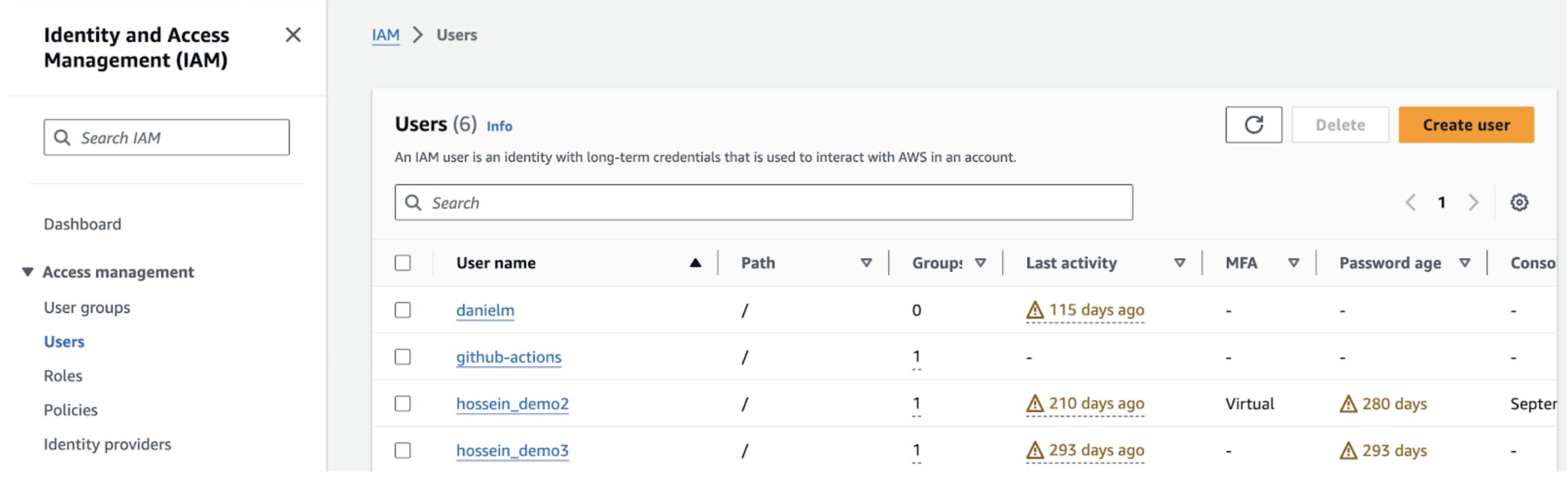
- Select the Create user button.
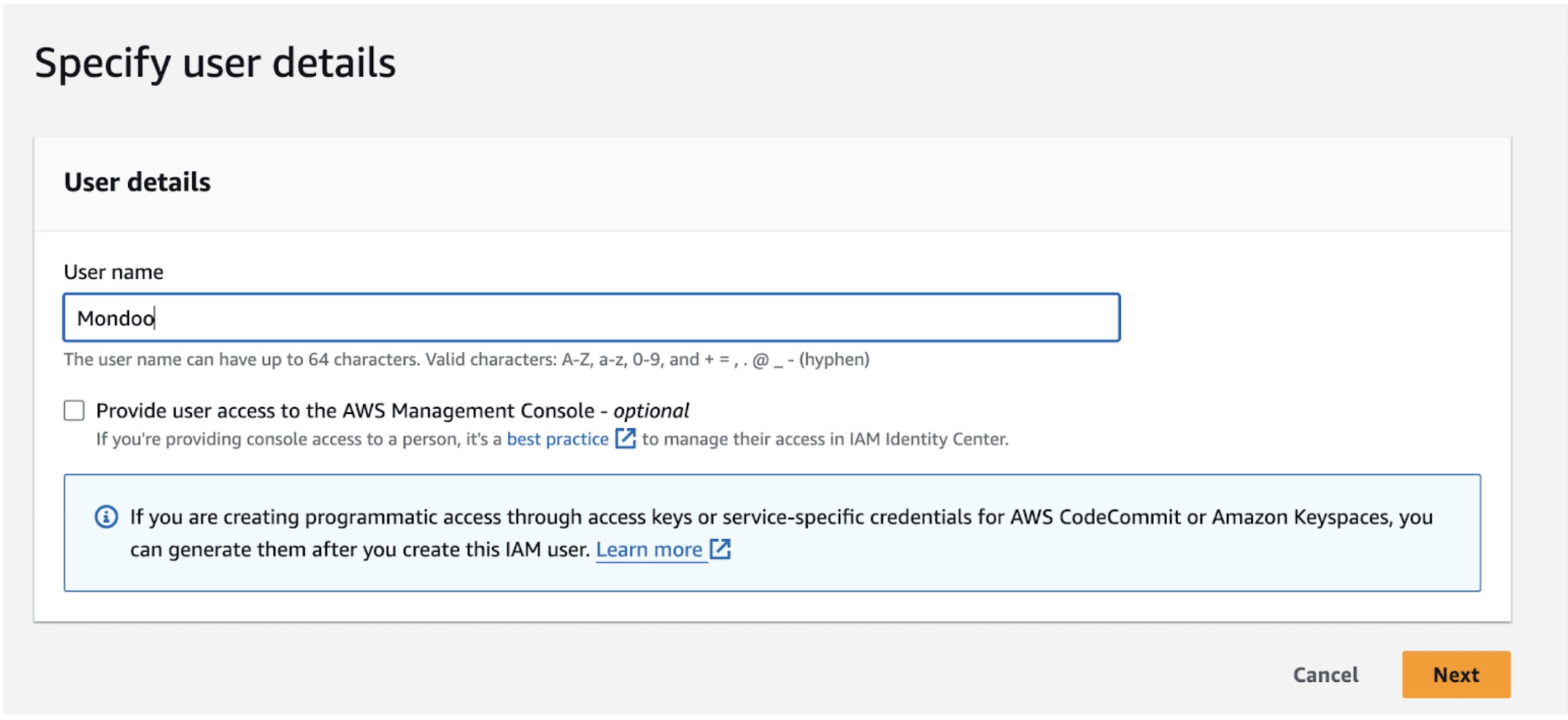
- Enter the user name Mondoo and select the Next button.
- Select Attach policies directly.
- Search for ReadOnlyAccess and check the box next to the permission named ReadOnlyAccess. The ARN for this permission is
arn:aws:iam::aws:policy/ReadOnlyAccess.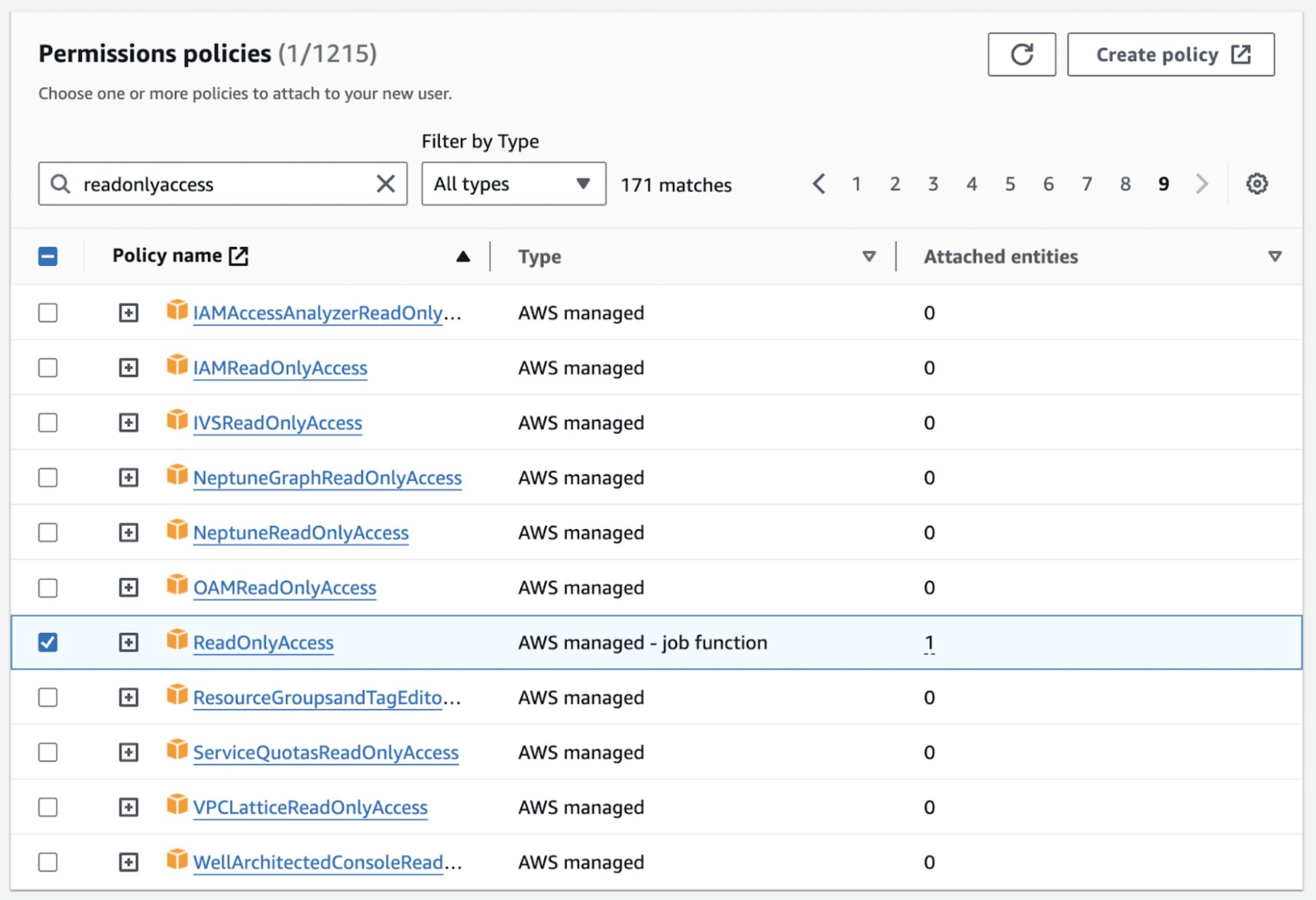
- Select the Next button and then select the Create user button.

- In the success confirmation message, select the View user button.
- Select the Security credentials tab.
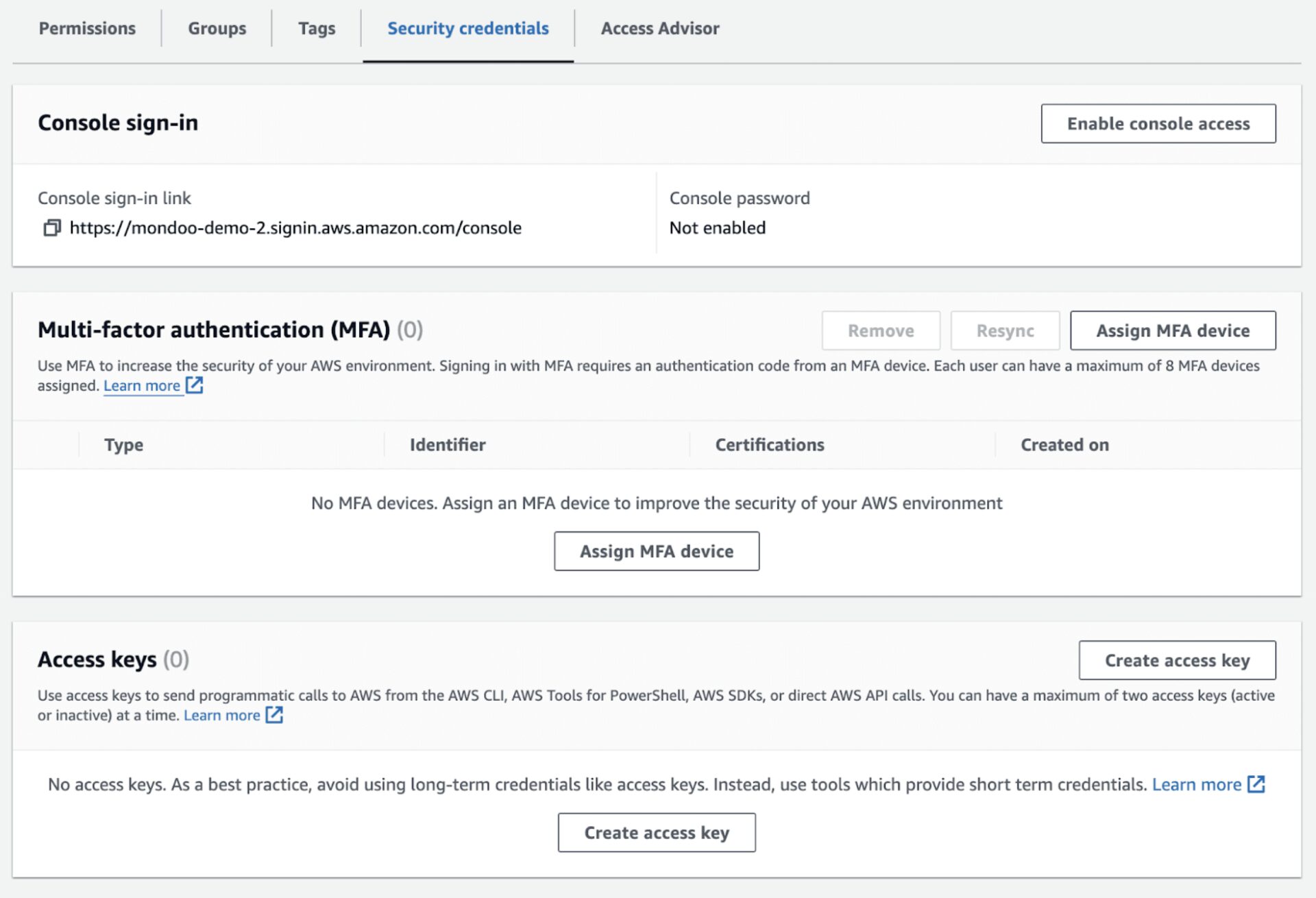
- Under Access Keys, select the Create access key button.
- Select Third-party service, check the I understand the above recommendation and want to proceed to create an access key box, and select the Next button.
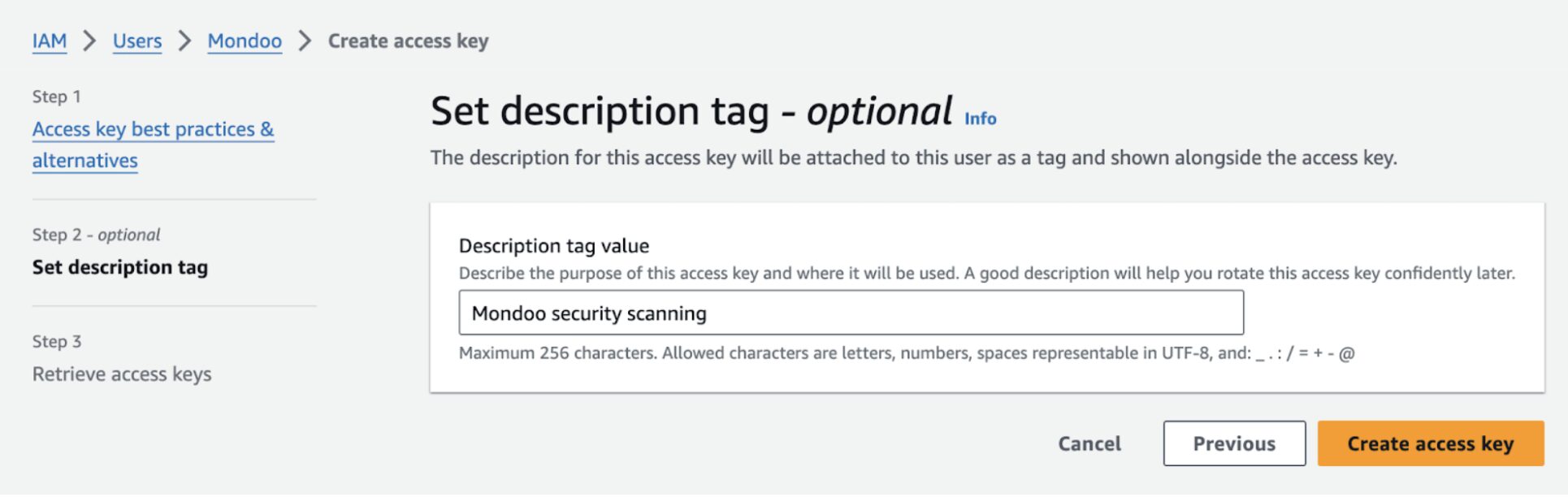
- Enter a description for the key and select the Create access key button.
- Keep the AWS IAM page with the key open in a browser tab as you continue to the next steps.
Step B: Set up a new AWS integration in the Mondoo Console
Note: Only team members with Editor or Owner access can perform this task.
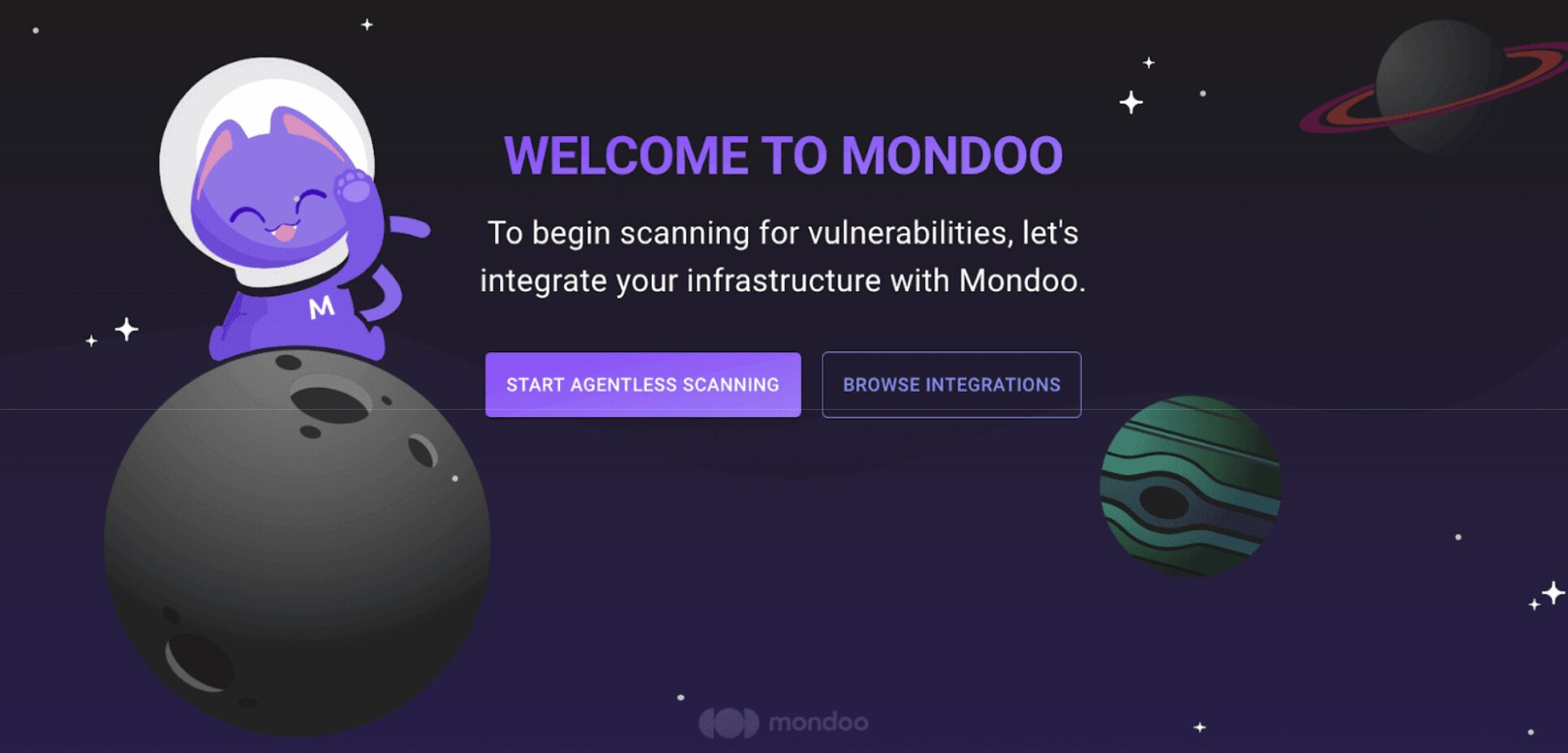
- After creating a new Mondoo account or creating a new space, the initial setup guide welcomes you. Select the BROWSE INTEGRATIONS button and then select AWS.
- On the Mondoo AWS Integration page, select the MONDOO-HOSTED INTEGRATION button.
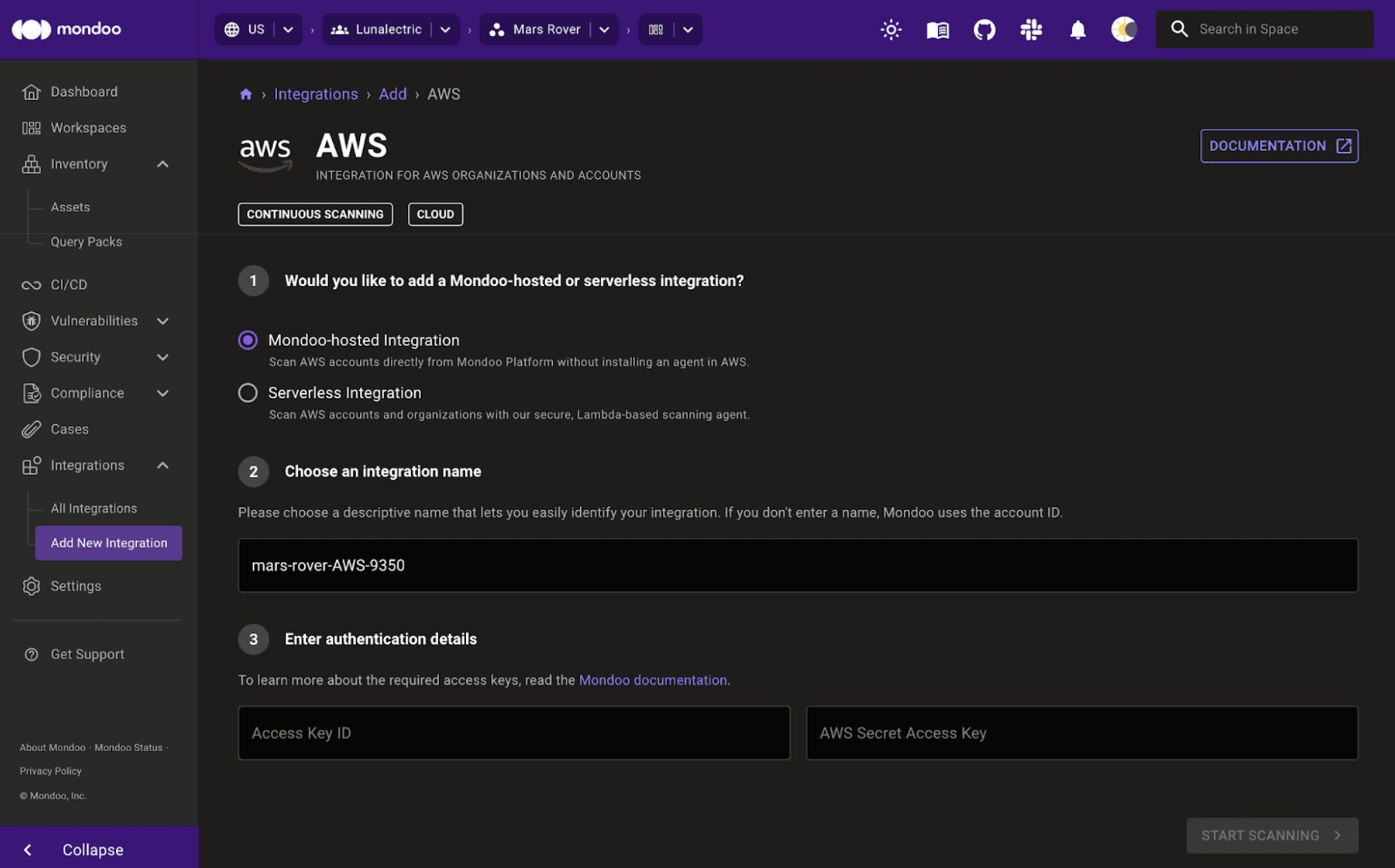
- In the Choose an integration name box, type a recognizable name for this AWS account.
- Return to the AWS IAM tab in your browser. It shows the access keys you created in the steps above. Copy the Access key.
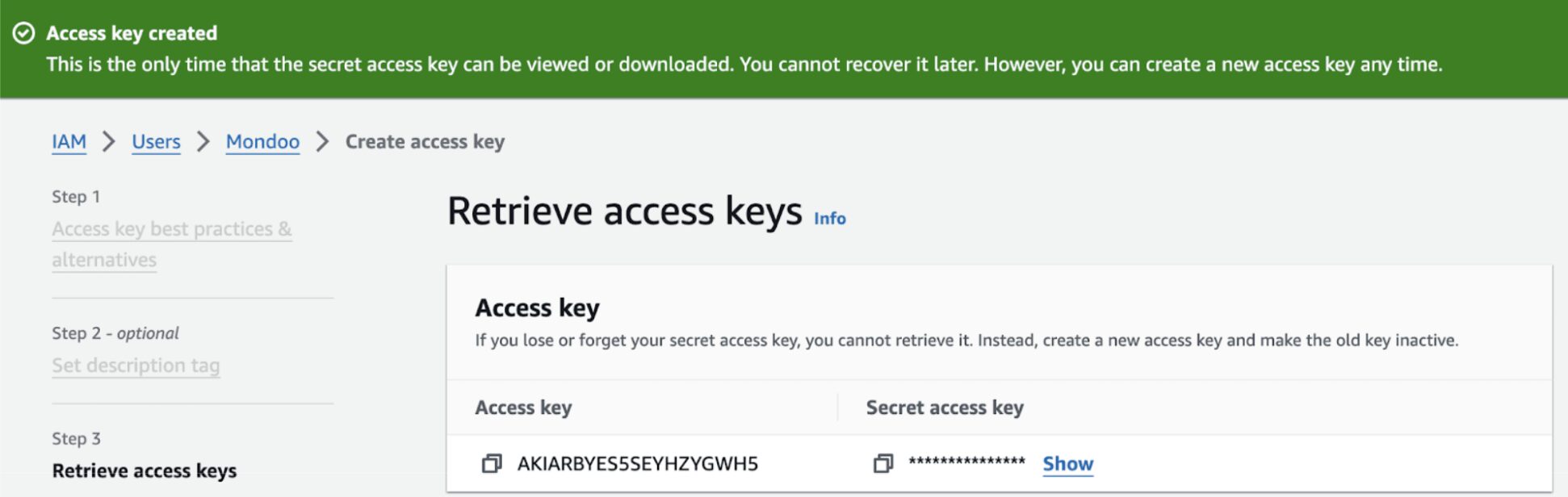
- In the Mondoo Console tab in your browser, under Enter authentication details, paste the Access key you copied.
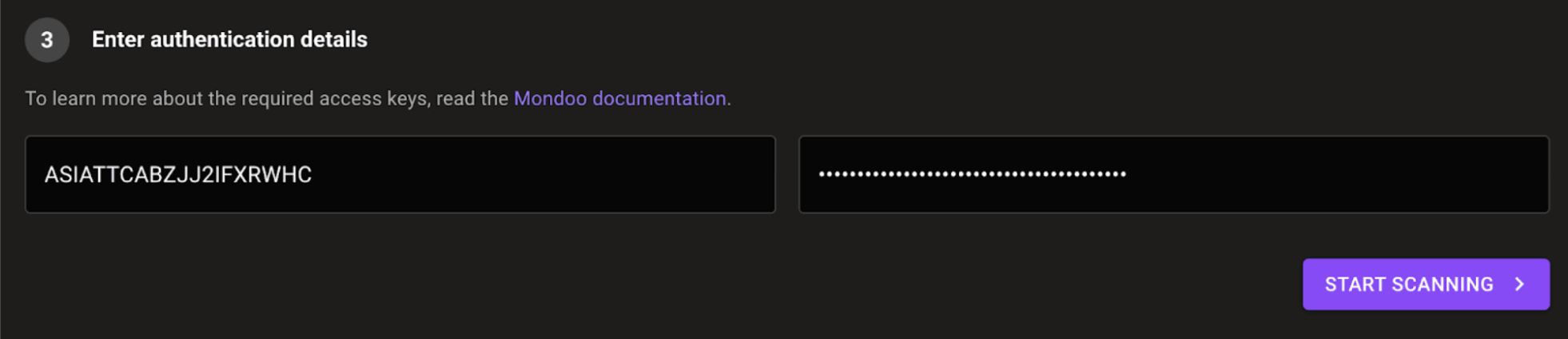
- In the AWS IAM tab in your browser, copy the Secret access key.
- In the Mondoo Console tab in your browser, in the second box under Enter authentication details, paste the AWS Secret access key.
- Select the START SCANNING button.
Manage an AWS integration
You can view the status of an AWS integration, change its configuration options, and more.
Note: Only team members with Editor or Owner access can perform this task.
To access an existing integration:
- In the Mondoo Console, navigate to the space containing the integration.
- In the side navigation bar, under Integrations, select AWS.
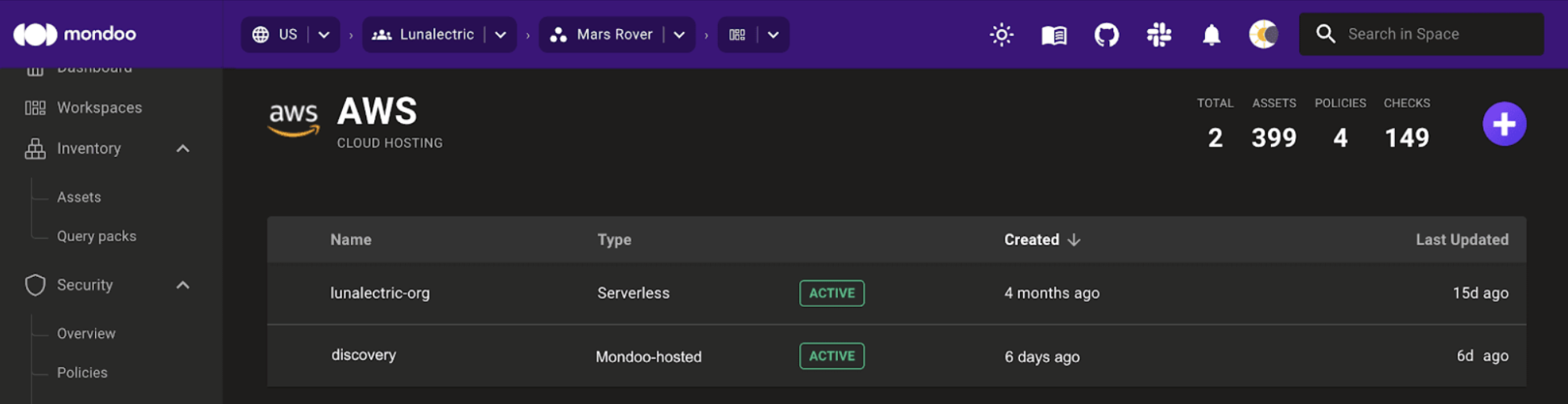
- Select the integration you want to view or manage.
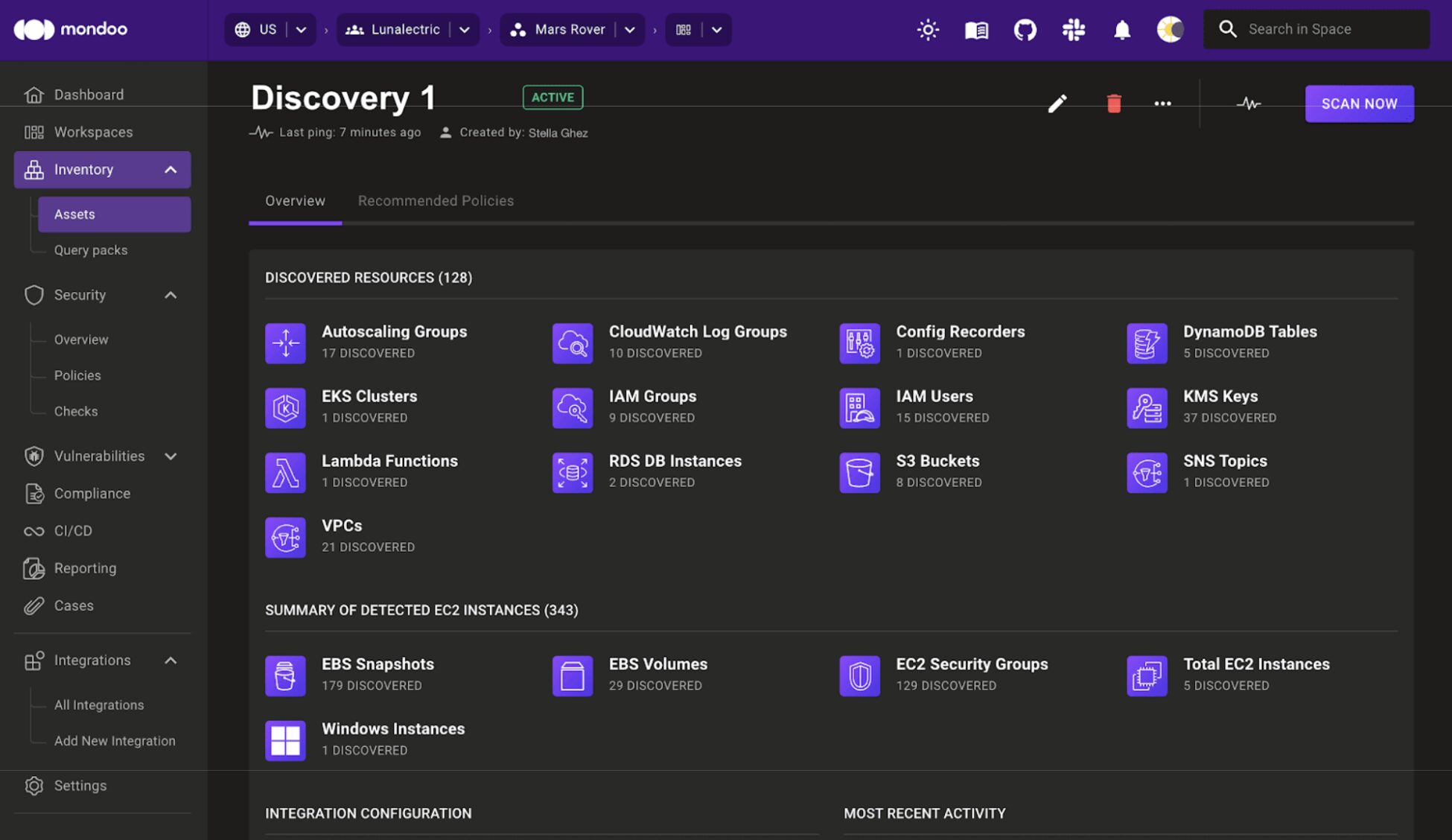
View an integration’s status
Mondoo shows the status at the top of the integration page, beside the integration name.

These are the possible statuses for an AWS integration:
| Status | Meaning |
| Configuring | Mondoo is sending the scan configuration options to the integration and the integration is saving those options. |
| Active | The integration is active and healthy. |
| Error | Mondoo detected an error during installation. |
| Missing | Mondoo hasn’t received scan results for over an hour. |
| Deleted | CloudFormation for the integration has been deleted. |
Ping an integration
At the top of the integration page, below the integration name, Mondoo shows the time of the last ping.
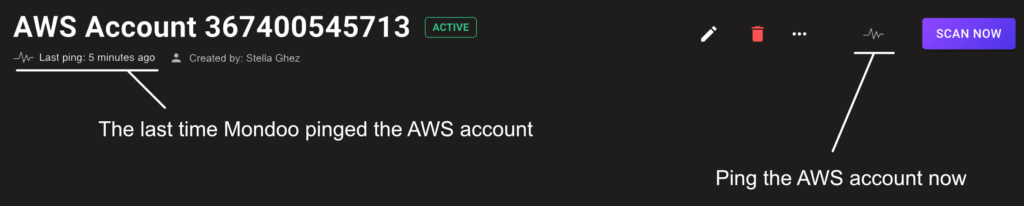
To ping the integration now, select the ping icon (a pulse to the left of the SCAN NOW button).
Request a fresh scan
Note: Only team members with Editor or Owner access can perform this task.
To see fresh scan results, select the SCAN NOW button. Mondoo retrieves new scan results as soon as possible.

Enable and disable policies for an AWS integration
Policies are coded collections of security checks. When Mondoo scans your AWS account, it runs these security checks against the assets in your AWS environment. These are some examples of AWS security checks in a policy:
- AWS console access requires multi-factor authentication.
- EC2 instances are private.
- EBS volumes use encryption for data at rest, in transit, and in snapshots.
When Mondoo scans, it verifies that your assets follow these security practices. Mondoo AWS policies contain hundreds of security checks. You choose which policies to use as the basis for monitoring the security posture of your AWS environment.
The RECOMMENDED POLICIES tab on the integration page lists policies that can help you protect your AWS environment. Toggles show which policies are enabled and disabled.
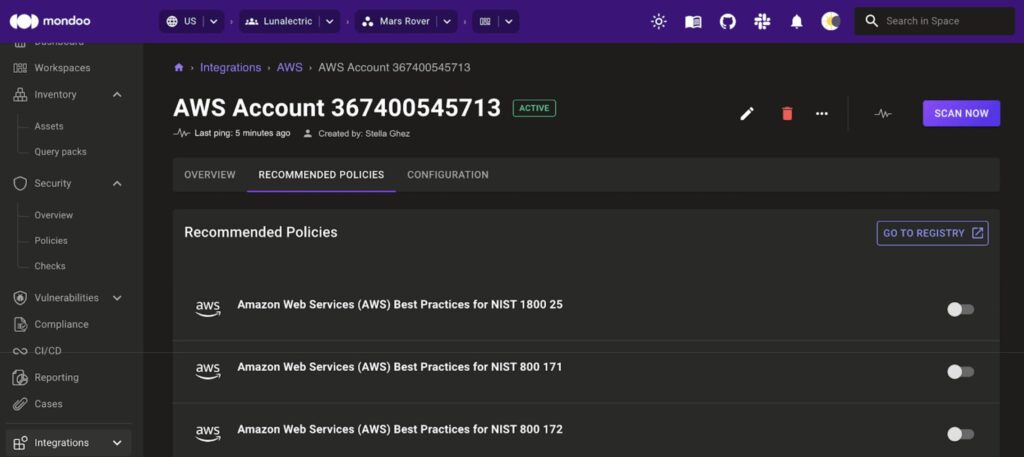
Note: Only team members with Editor or Owner access can perform this task.
To enable or disable a policy, select the toggle on the right side of the policy’s row.
To learn more about Mondoo security policies, read Policy as Code. To learn more about choosing policies, read Manage Policies in the Console.
Remove an integration
To stop Mondoo from monitoring your AWS environment, you can remove the integration in Mondoo and also delete the stack in the AWS Management Console.
Note: Only team members with Editor or Owner access can perform this task.
Warning: When you remove an integration, you delete all historic data. Be sure to export any data you want to save. To learn how, read Export Data from Mondoo.
To remove an integration, select the Remove (trash can) icon at the top of the integration page.

A notification displays with a link to the CloudFormation Stacks list in the AWS console. Select the link and, in the AWS console, delete the stack. This removes the configured integration from Mondoo Platform and deletes the rule allowing the Mondoo AWS account to send events to the target account.
Learn more
Serverless AWS Integration Troubleshooting
Serverless AWS Integration FAQ